How to Data Log a MEMS 1.6 ECU
Download
Link: https://andrewrevill.co.uk/Downloads/MEMSTools.zip
Instructions for getting started with
MEMS Mapper and data logging a MEMS 1.6 ECU.
NB: MEMS 1.6
needs a specific 3-pin ROSCO diagnostic cable. I sell these myself on eBay
here: https://www.ebay.co.uk/itm/257228703508
but a simialr cable purchased elsewhere should work perfectly well too These
cables has a USB connector on one end for the PC and a 3-pin ROSCO connector on
the other end. Be casreful because cars which used this cable usually had TWO
simialr ROSCO connectors, one coloured GREEN (for the immobilised), one
coloured CREAM (for the MEMS ECU). Despite the identical connectors, they are
completely incompatible. The cable I linked to above is ONLY for the MEMS ECU
on the CREAM connector.
· Download MEMS Tools from the link at the top of this page. This will download a .ZIP file.
·
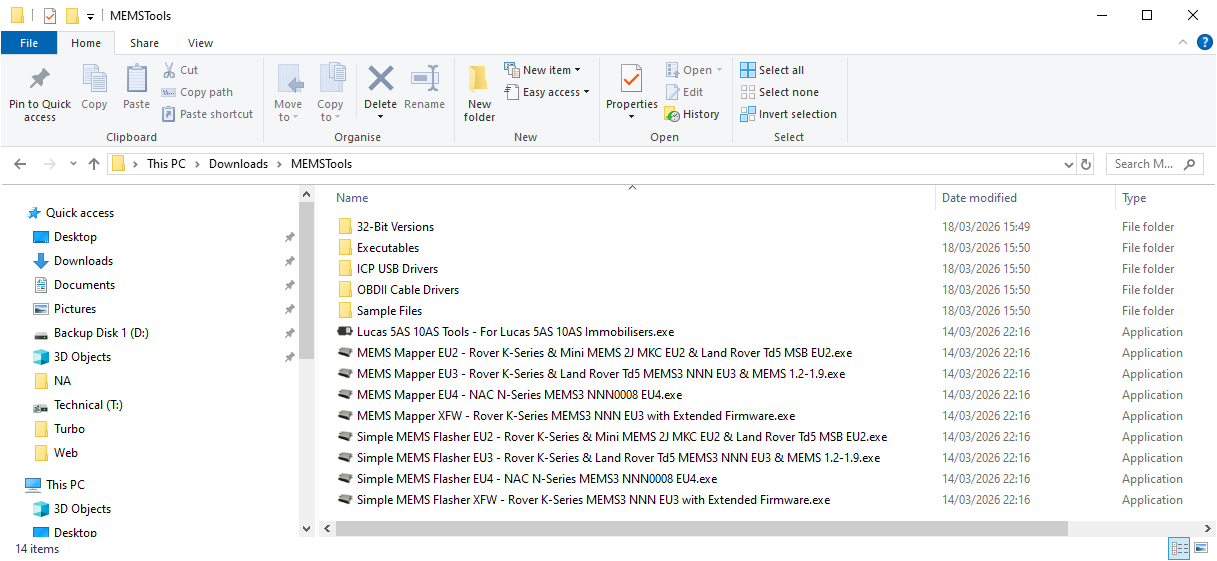
Extract the .ZIP file into a new empty folder and
the contents should look like this:
·
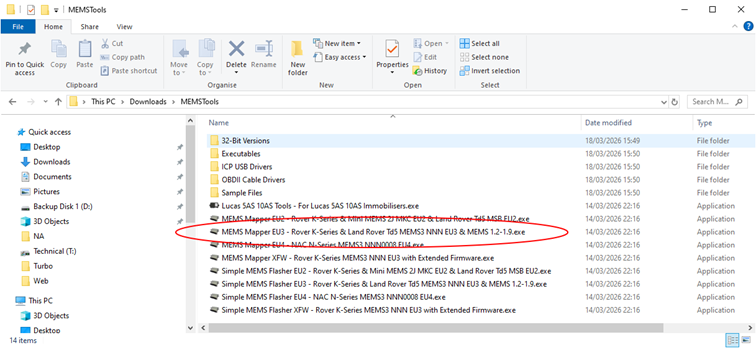
For a MEMS 1.6 ECU, you need to launch
(double-click) the EU3 version of MEMS Mapper (the EU2 version is ONLY for the
MEMS 2J and Land Rover Td5 MSB ECUs, the EU3 version covers the earlier ECUs as
well as MEMS3):
·
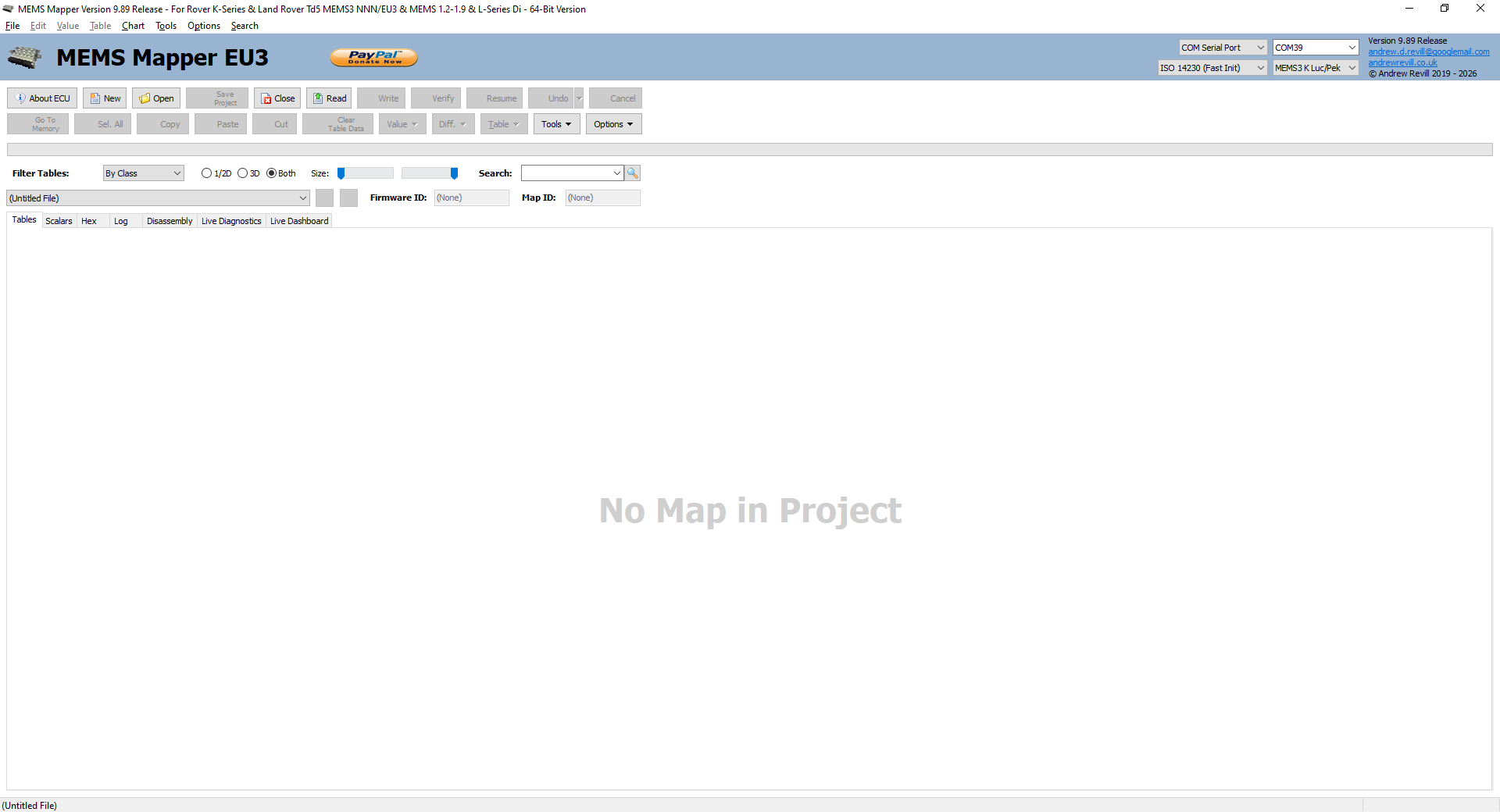
You should then see a window that looks like
this:
·
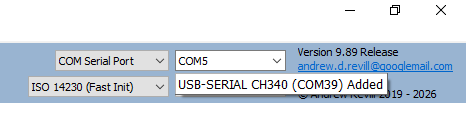
Plug your cable into a USB port on your
computer. You should see a popup like this, which tells you the COM port number
that Windows has assigned to your cable:
·
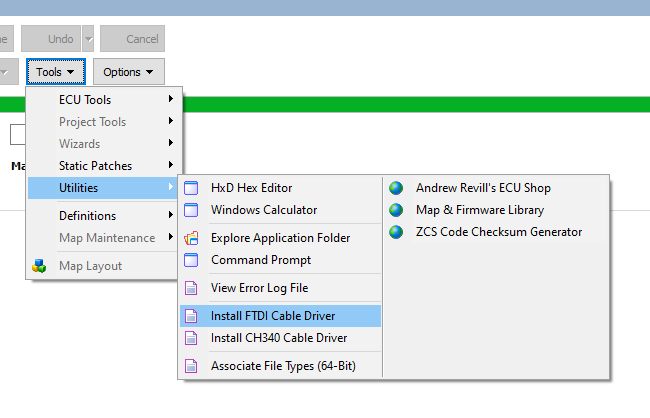
If you don’t see the popup, you may need to
install drivers for the cable. There are options to do this on the menu in MEMS
Mapper. If it’s a ROSCO cable bought from me, you will need the FTDI driver.
For other cables, you may need the CH340 driver instead, or possibly another
driver such as Prolific; in which case you need to ask the supplier of the
cable to provide the appropriate driver. These menu items launch the chip
manufacturer’s own driver installation program.
·
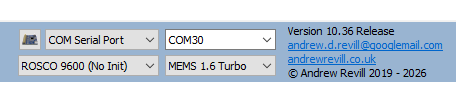
Now select the COM port which Windows has
assigned to your cable as shown here:
·
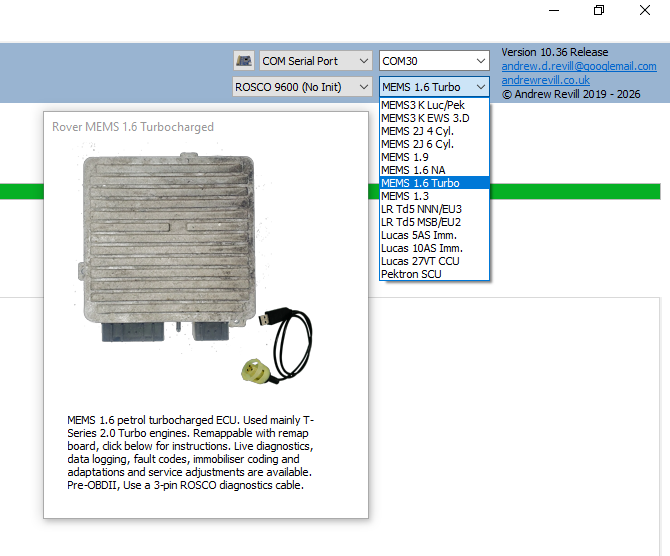
Make sure you have to correct ECU type selected
here. Choose “MEMS 1.6 NA” or “MEMS 1.6 Turbo” as appropriate (these two ECUs
are in fact quite different so it’s important that you select the correct one
here):
·
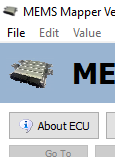
Click About ECU:
·
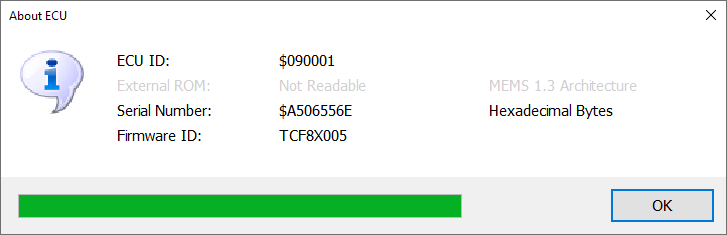
If everything is set up correctly and you are
connected to the ECU, you should see a box of information about the ECU like
this:
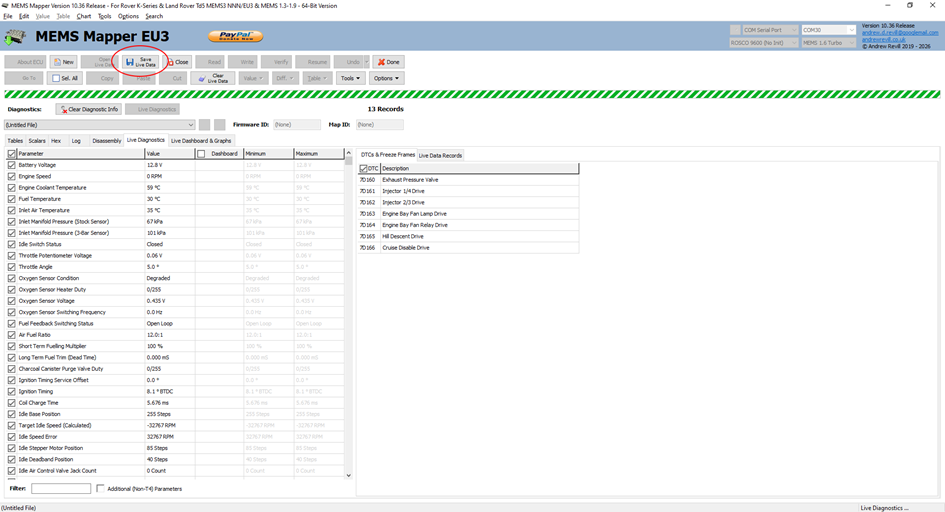
· You are now ready to view Live Diagnostics, fault codes and to data log the ECU (record the Live Diagnostics data and save to a file).
·
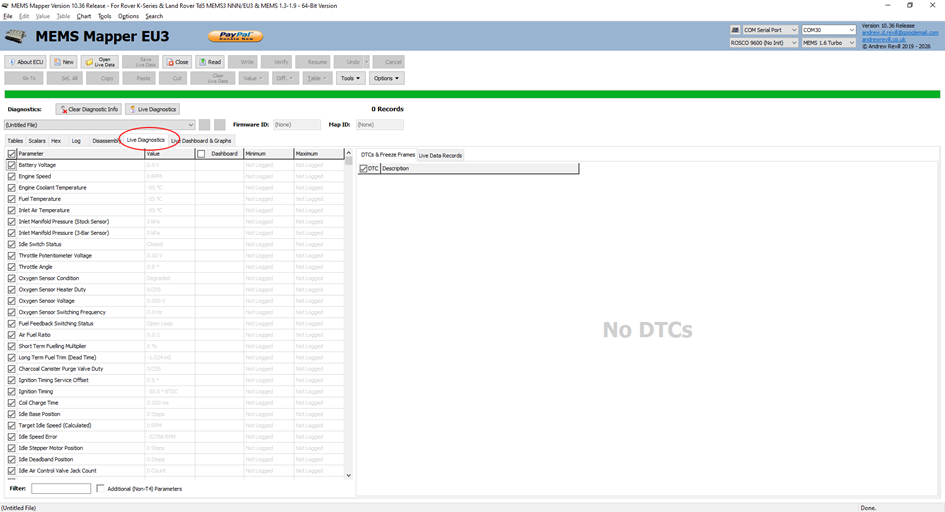
In MEMS Mapper, click into the Live Diagnostics
tab:
·
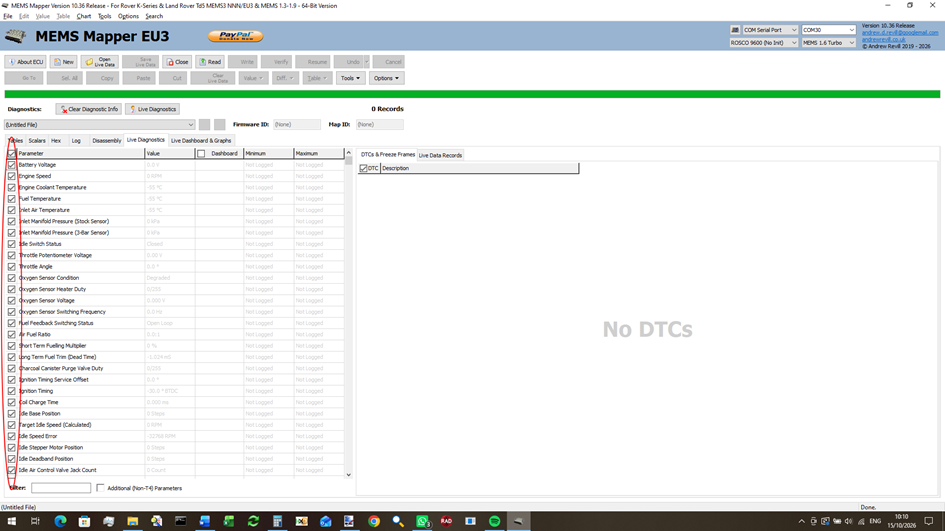
Here you can select which data measures you want
to view and log. The more you select, the slower it will update, as it has more
information to read each time around. By default everything will be selected to
start with:
·
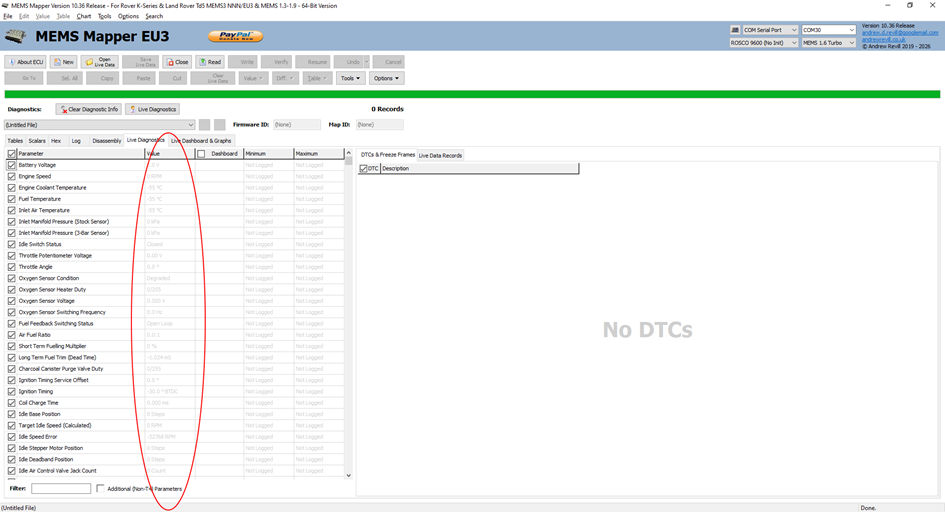
Live data values will show here. At the
moment they're all shown in grey, because it's not running and the values are
not live / up to date:
·
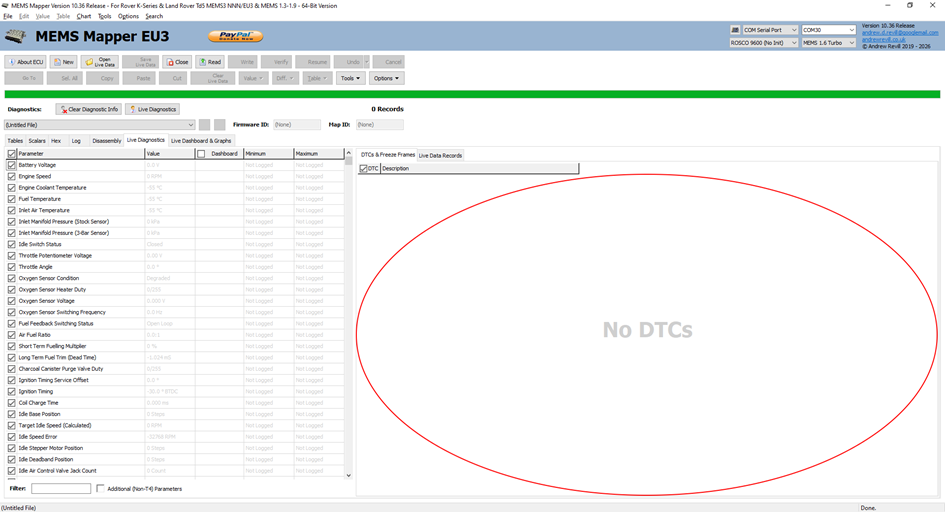
Fault codes will show here:
·
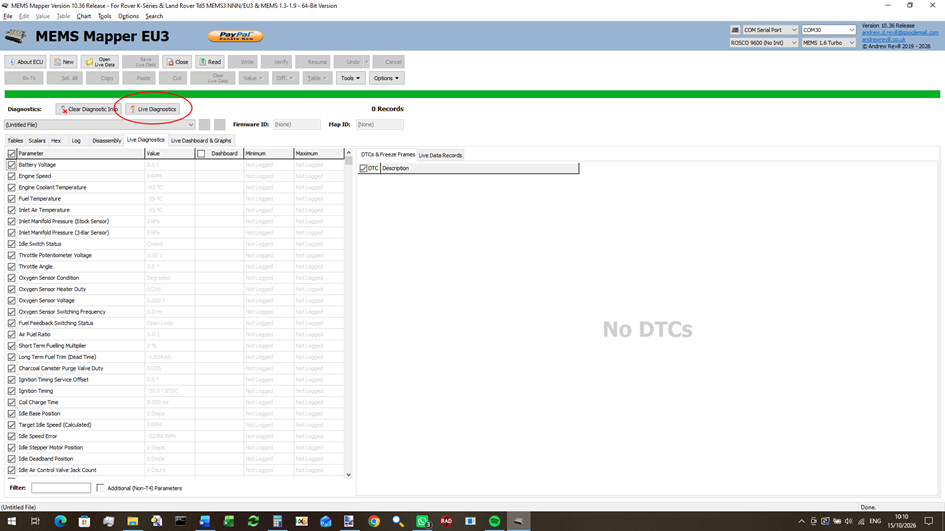
To start displaying and
recording live data, click here:
·
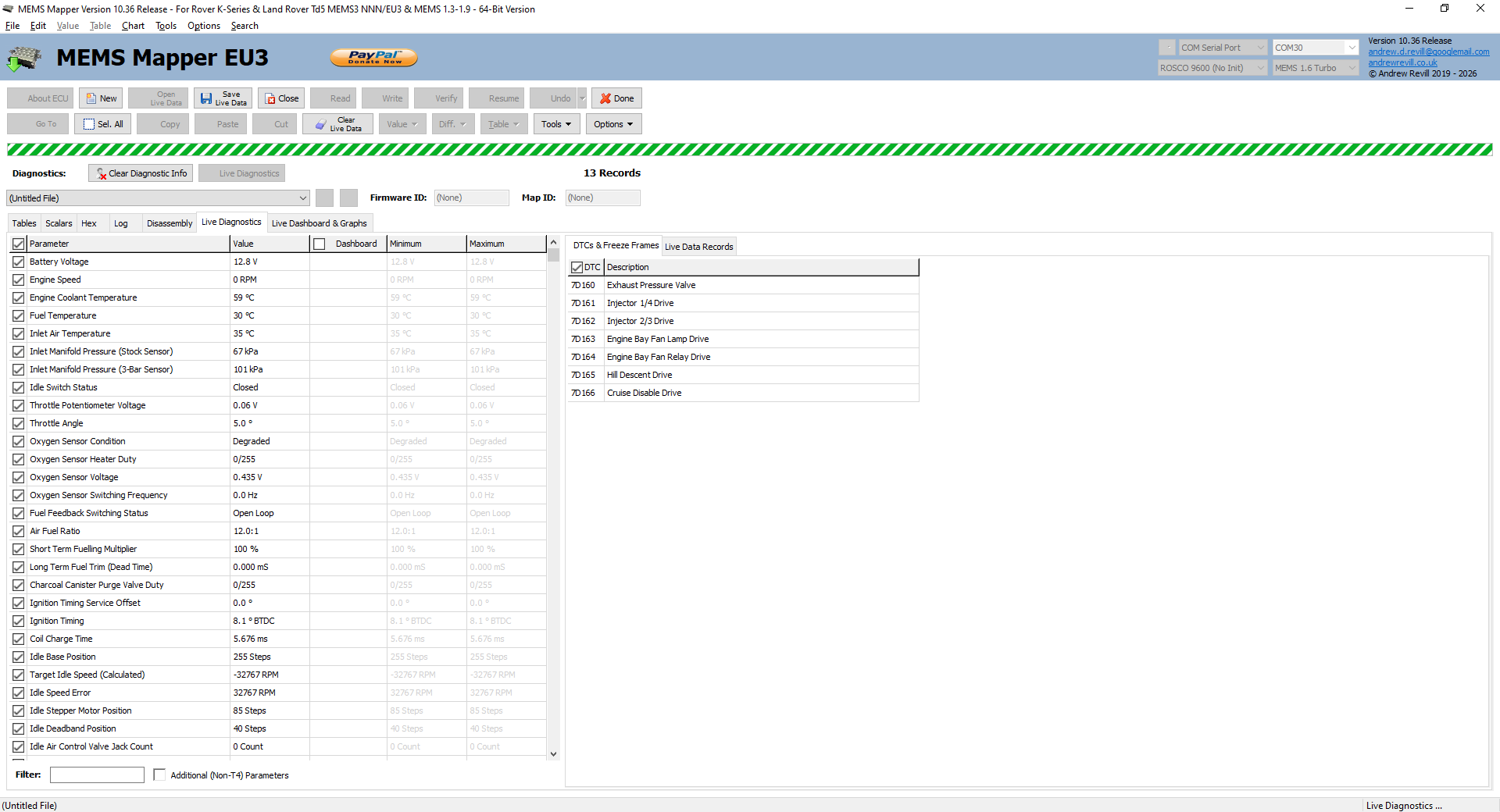
It should then start showing live data
values. It will also update the DTC fault codes about once every 10 seconds.
The live data will updated about once a second with everything
selected or faster with fewer measures selected. All of the values displayed
are logged to memory in the background while it is running:
·
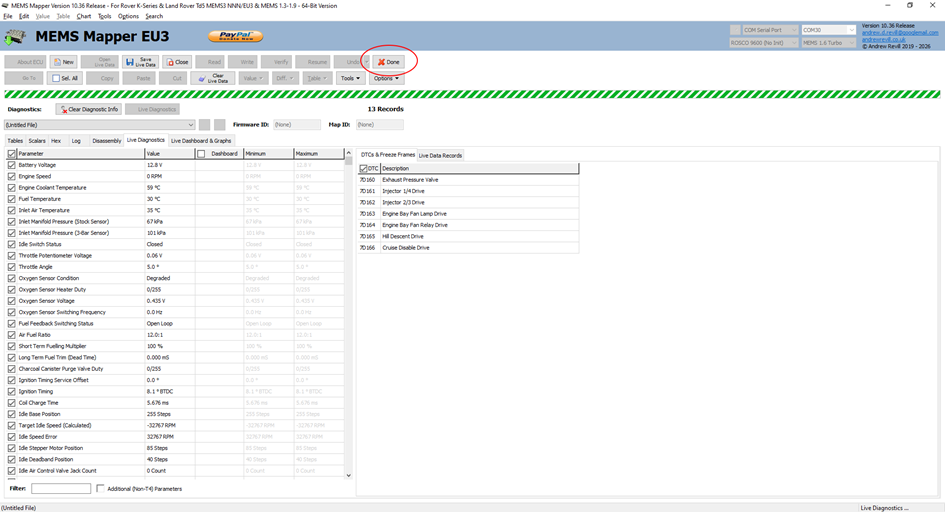
When you've finished
with Live Diagnostics, click Done here:
·
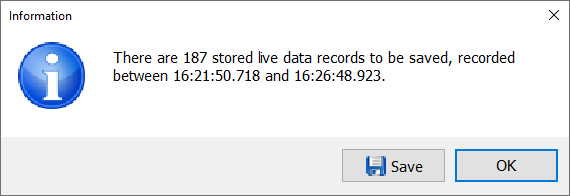
You will then be asked whether you want to save
the live data recorded:
·
You can also save the live data or fault codes
afterwards by clicking on one grid or the other, then Save Live Data clicking
here: