How to Download MEMS Tools, Install
Cable Drivers and Connect to an ECU
Download
Link: https://andrewrevill.co.uk/Downloads/MEMSTools.zip
Instructions for getting started with
MEMS Mapper and connecting to an ECU.
NB: I no longer
generally supply the mini CD when I sell cables. The CDs come with the cables
when I buy them, but lately I have sometimes found them to contain unnecessary
or confusing VAG software tools and/or potentially unwanted or damaging
programs. So I now remove the CDs for your protection and supply these
instructions which guide you through the process of downloading and installing
the software and drivers from my website, which is a much safer option. Please
do not be concerned when there is no CD in the bag with the cable, everything
you need can be downloaded for free online.
· Download MEMS Tools from the link at the top of this page. This will download a .ZIP file.
·
Extract the .ZIP file into a new empty folder
and the contents should look like this:
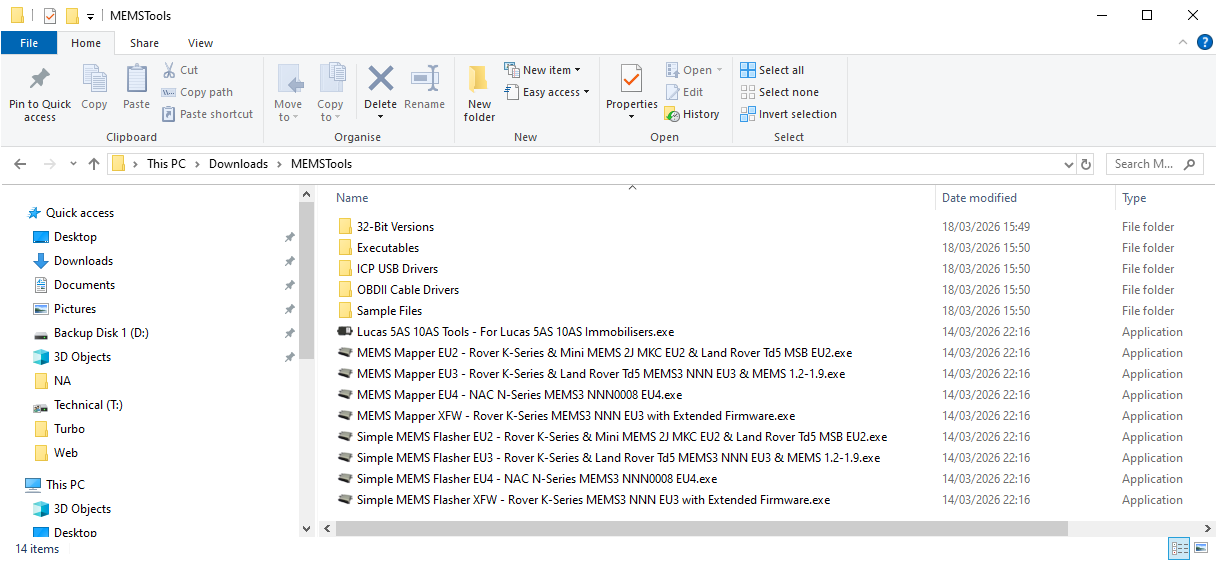
· Launch (double-click) the appropriate version of MEMS Mapper. The ECU types are listed for each version as shown above.
·
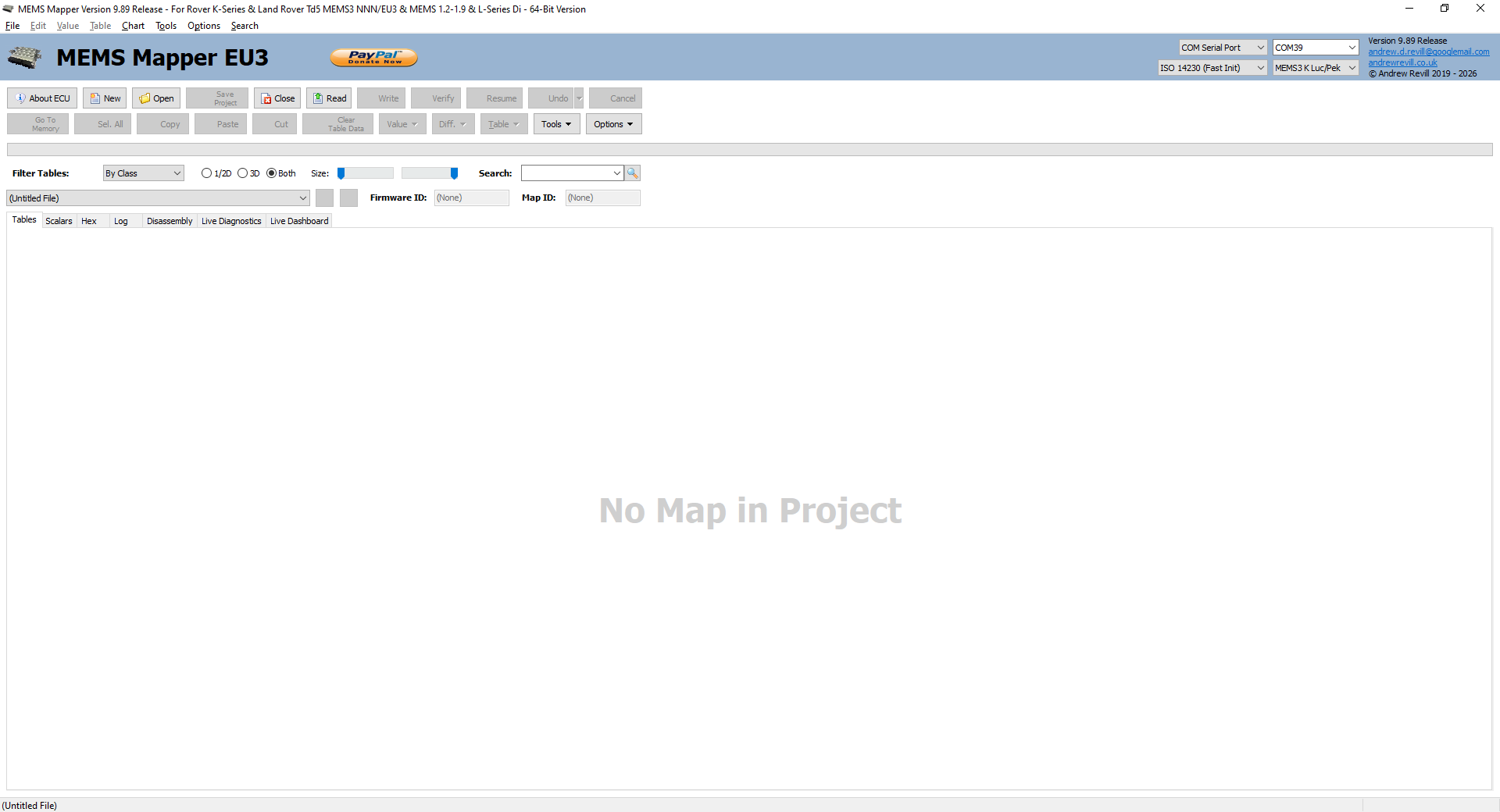
You should then see a window that looks like
this (it might look slightly different depending on the version you launched,
but the instructions below apply to all of the different versions equally):
·
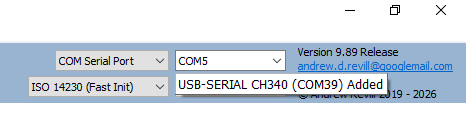
Plug your cable into a USB port on your
computer. You should see a popup like this, which tells you the COM port number
that Windows has assigned to your cable:
·
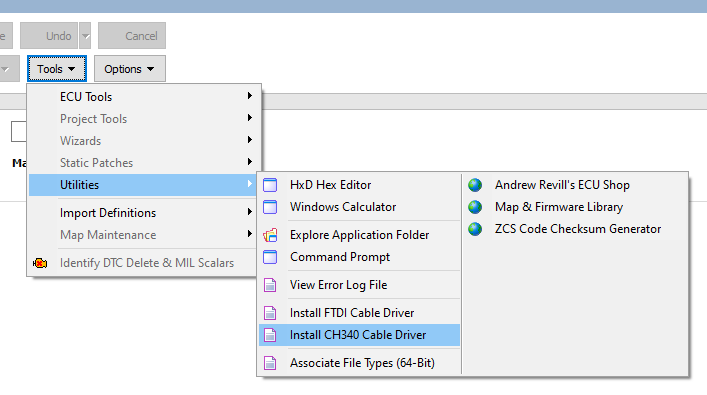
If you don’t see the popup, you may need to
install drivers for the cable. There are options to do this on the menu in MEMS
Mapper. If it’s a cable bought from me, you will need the CH340 driver. For
other cables, you may need the FTDI driver instead. These menu items launch the
chip manufacturer’s own driver installation program. Alternatively, you may
download and install the drivers straight from the chip manufacturers’
websites: CH340: https://www.wch-ic.com/downloads/ch341ser_zip.html,
FTDI: https://ftdichip.com/drivers/,
although Iwould recommend installing through Mapper for simplicity.
·
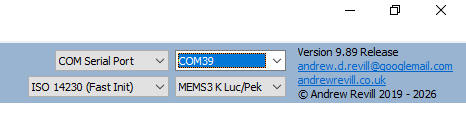
Now select the COM port which Windows has
assigned to your cable as shown here:
·
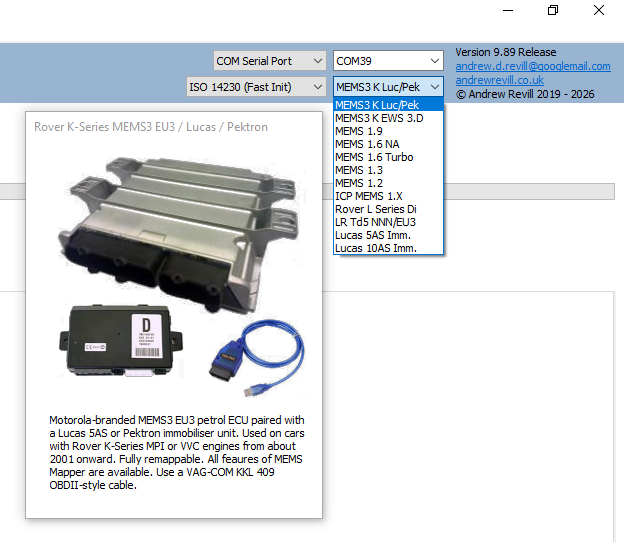
Make sure you have to correct ECU type selected
here (the example below shows a petrol MEMS3 ECU, but you should select the
type which matches the ECU you want to connect to):
·
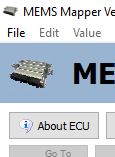
Click About ECU:
·
If everything is set up correctly and you are
connected to the ECU, you should see a box of information about the ECU like
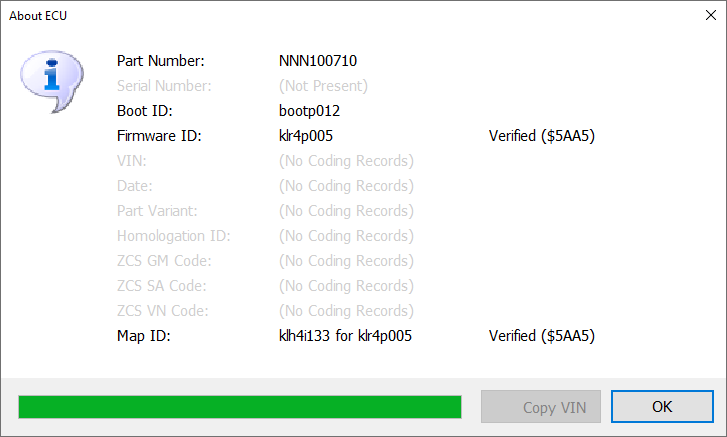
this (the dialog box shown may look different for different ECU types):